How to make your iPhone read text aloud
Go to Settings → Accessibility → Read & Speak and turn on Speak Screen, then swipe down from the top of the screen with two fingers. Your iPhone reads whatever is on screen. For a few paragraphs, Speak Selection is quicker. For a whole PDF or ebook, the built-in tools get awkward. That’s where a reading app helps.
Speak Screen: read everything on the screen
This is the one most people want. It reads the whole visible page from the top and scrolls as it goes, in Safari, Mail, Notes, Files, Apple Books and most other apps.
Turn it on
Open Settings → Accessibility → Read & Speak and switch on Speak Screen. On iOS 18 and earlier the same switch is under Settings → Accessibility → Spoken Content.
Open what you want read
A web page, an email, a note, a PDF in Files or a book in Apple Books. Scroll to where you want it to start; Speak Screen begins at the top of what is on screen.
Swipe down with two fingers from the top edge
It starts reading straight away and shows a small controller with pause, skip and speed buttons. You can also say “Hey Siri, speak screen”.
Speak Selection: read just the part you pick
Turn on Speak Selection in the same Read & Speak screen. Then select some text anywhere, the way you would to copy it, and choose Speak from the menu that pops up. It is the fastest way to hear one paragraph or check how a word is pronounced.
Two related switches in the same place are worth knowing about. Highlight Content underlines each word as it is read. Typing Feedback reads letters and words as you type.
Web pages in Safari
Speak Screen works on any web page. Recent versions of Safari can also read an article aloud on their own: look for Listen to Page in the page menu. It isn’t offered on every page. Where it is, it reads the article without the menus and ads around it.
Reading a PDF aloud on iPhone
Open the PDF in Files or Apple Books and use Speak Screen. That works, and for a short document it is all you need. A long one is a different job, and the built-in tool shows its limits:
- It reads what is on the screen, so there is no bookmark. Stop halfway through a 200-page report and you scroll back to where you were and start again.
- It reads headers, footers and page numbers on every page, because they are on the screen.
- There are no chapters to skip between.
None of that matters for a three-page letter. It matters a great deal for a textbook chapter, a thesis or a novel saved as a PDF.
Built-in tools vs a reading app
| Cost | Built in: free, no limit. Narrator: free plan of 25,000 characters a day; Plus ($4.99/month) has no cap. |
|---|---|
| What it reads | Built in: whatever is on the screen or selected, in any app. Narrator: files you import (ePub, MOBI, AZW, AZW3, PDF, DOCX, RTF, TXT), pasted text, and web pages shared from Safari. |
| Keeps your place | Built in: no. Narrator: yes, for every document. |
| Chapters | Built in: no. Narrator: yes, for ePub, MOBI and AZW3. |
| Voices | Built in: Apple’s system voices in many languages. Narrator: natural AI voices in 5 languages, plus the same system voices. |
| Save as audio | Built in: no. Narrator: exports an .m4a file with Plus. |
The honest summary is that the built-in tools are the right answer for anything you would read in one sitting. If you are listening to something over days, you want an app that remembers where you were.

Free plan, no account · iOS 26+
Using Narrator instead
Get the text to Narrator
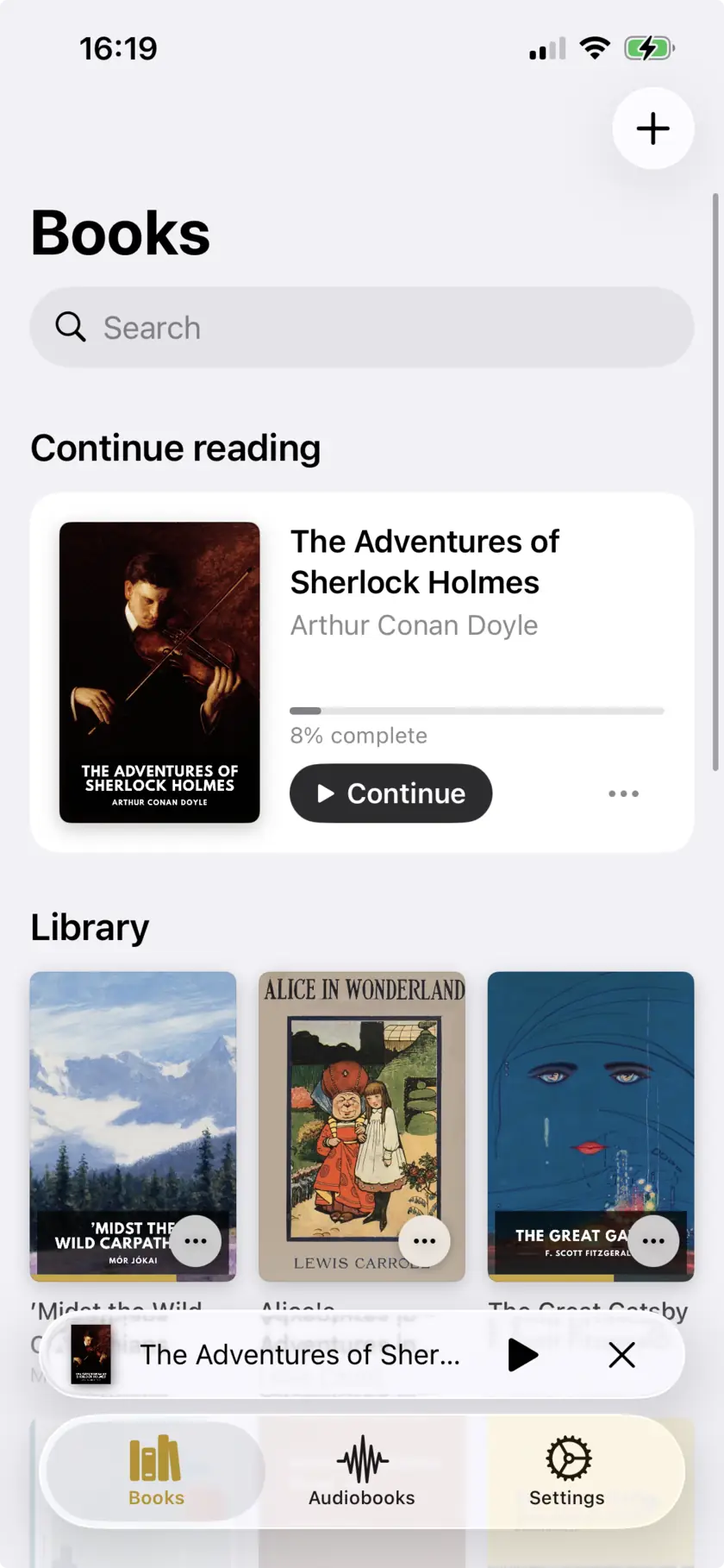
Import a file from Files (PDF, ePub, Word, RTF or TXT), paste text directly, or share a web page to Narrator from Safari’s Share menu, which pulls out the article text.
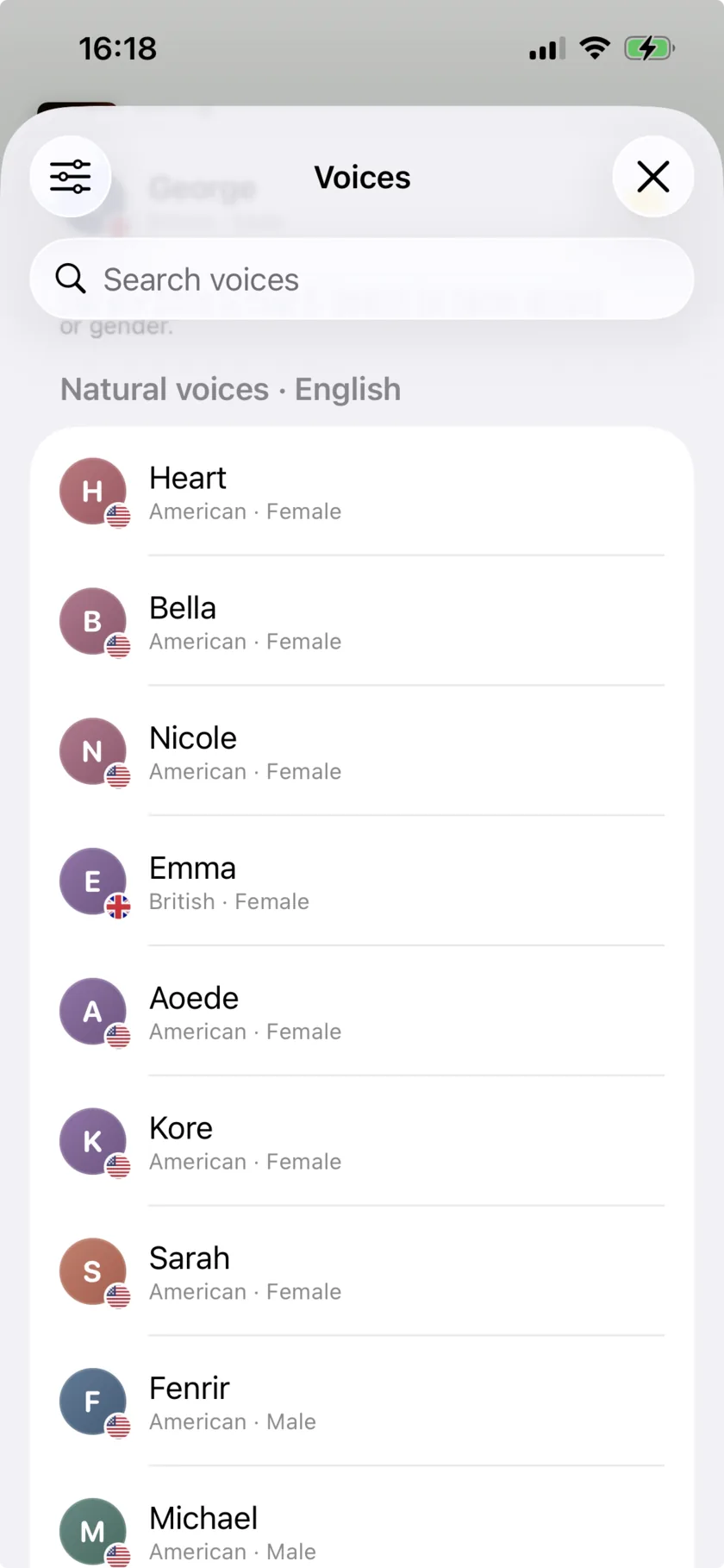
Choose a voice and speed
Pick a natural AI voice or any iOS voice, and set the speed anywhere from 0.5x – 3x.
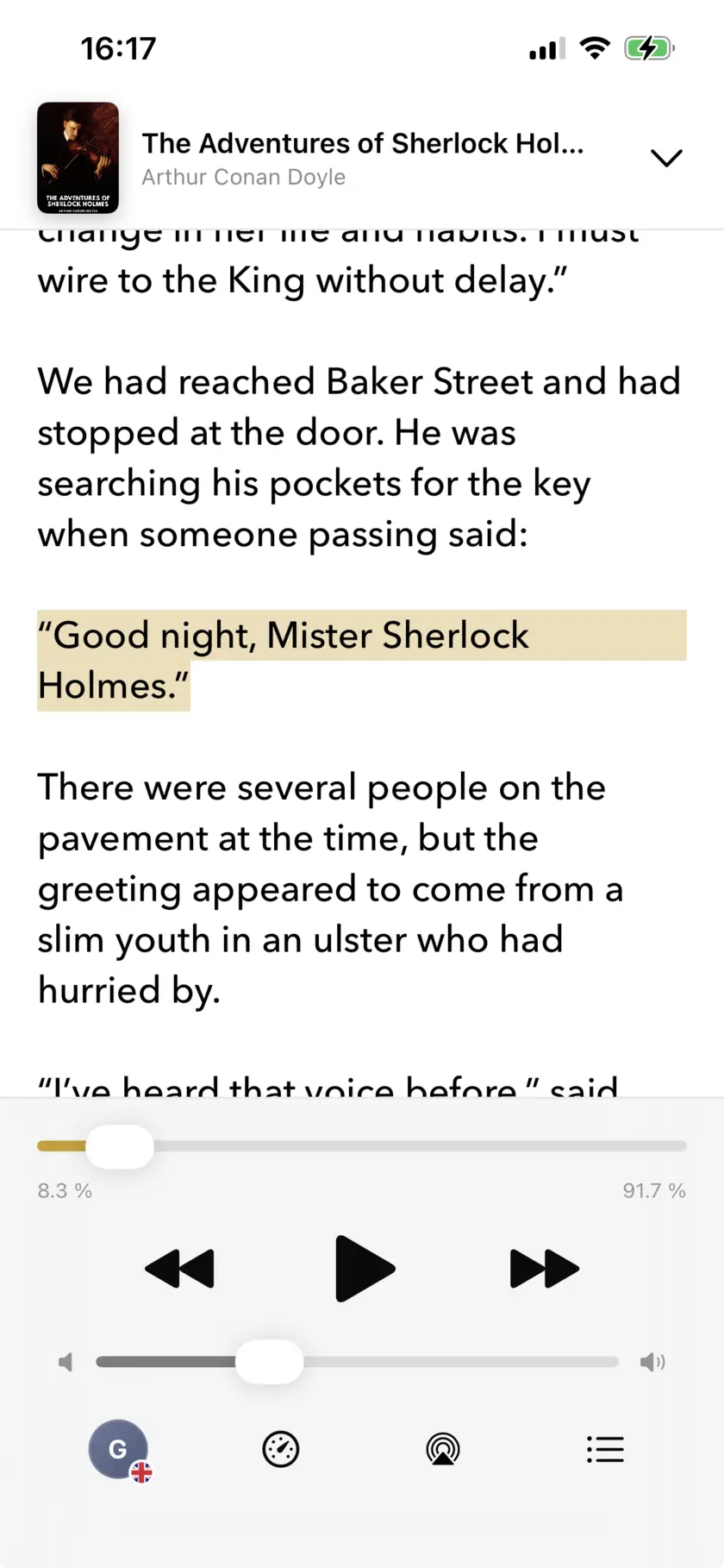
Press play
It reads with the current sentence highlighted, keeps going with the phone locked, and remembers where you stopped, per document.
What the free plan covers
Free plan at a glance
No account, no trial expiry. The cap is on narration — that means listening, not just export.
| Every day | 25,000 characters — about 4,000 words, roughly one chapter, or 28 minutes of listening at 1x. Resets daily. |
|---|---|
| Lifetime pool | 150,000 characters — about 25,000 words, or 2.8 extra hours. Only drawn on after you pass the daily limit. |
| Plus | $4.99/month or $29.99/year. Removes the limits. |
Limits
What it doesn’t do
- The free plan narrates 25,000 characters a day, roughly half an hour of listening. A long PDF will take several days unless you upgrade.
- Scanned PDFs with no text layer will not read.
- Tables, images and footnotes are skipped or read as running text.
- Sharing a web page pulls out the main article text. Pages behind a login or a paywall usually come through empty.
- iOS 26.0 or later, iPhone and iPad only.
Common questions
Usually one of three things. Speak Screen is not switched on (Settings → Accessibility → Read & Speak). The swipe did not start at the very top edge of the screen, so iOS treated it as a scroll. Or the swipe opened Notification Center or Control Center instead, which happens when it starts slightly to one side. Asking Siri to “speak screen” is a quick way to check the feature works at all.
Yes. Open the PDF in Files or Apple Books and use Speak Screen. It works best for a few pages at a time. For a long PDF, a reading app that keeps your place is less frustrating. In Narrator that costs nothing on the free plan, within the daily allowance.
Narrator cannot. A scanned PDF is a picture of a page with no text inside it. If you cannot select a word in the PDF, there is no text for Narrator to read.
In Settings → Accessibility → Read & Speak → Voices, pick your language and download one of the Enhanced or Premium voices. They are larger downloads and sound noticeably less mechanical than the defaults.
Only to download a voice the first time you use it. After that, reading happens on the phone, offline.
For anything longer than one sitting
Free plan, no account · 25,000 characters a day · iOS 26+

Scan to open on your iPhone